The AI notepad for your meetings
Your notes plus the meeting, turned into a short summary built around what you wrote. Jot a few points while people talk, then press “Generate notes” when it ends: your points are the outline, and Mesakem fills in around them from what was said.
Windows 10 or later · Mac with Apple silicon · Hebrew and English
What is the Mesakem Notepad?
A small window that opens next to your recording in the Mesakem desktop app. During the meeting you jot short notes in it, see a live transcript when one is available in the meeting's language, and ask about what was said. When the meeting ends, one click turns your notes into a short summary built around every point you wrote, with Mesakem filling in the details from the meeting.
How the Notepad works
No templates, no setup: write, ask, and click once.
Jot short notes during the meeting
Start a recording in the desktop app and open the Notepad from the recording controls. Write only what matters to you, in your own words. Enter starts a new line, and your notes save on their own.
See the live transcript and ask as you go
When a live transcript is available in the meeting's language, it appears in the Notepad as people talk. Ask in the bar at the bottom, say “What was decided?” or “Who's taking this?”, and get a short answer from what has been said so far.
One click: a short summary around your notes
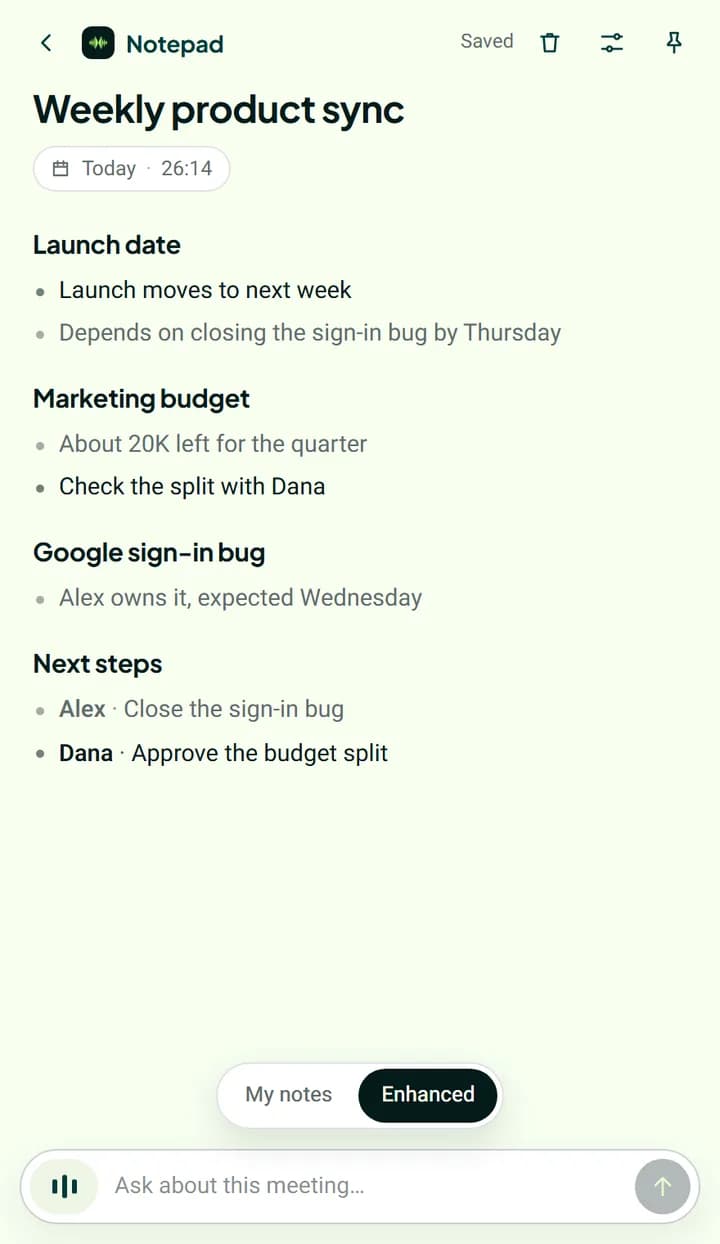
When the meeting ends, press “Generate notes”. Your notes become the headings and points, Mesakem fills in details from the transcript, and adds “Next steps” with owners when they were named in the meeting.
A summary that stays yours
Yours in dark, Mesakem's in grey
You see at a glance what you wrote and what Mesakem added: your lines stay dark and the additions are grey. That makes the summary easy to check before you pass it on, and “My notes” shows exactly what you wrote.
No bot in the call
The Windows and Mac app records the meeting on your computer. No participant is added to the meeting.
Hebrew and English
The Notepad, its answers and the summary work in Hebrew and English, and the summary is written in the meeting's language. The live transcript shows when it is available in that language.
A link people can ask
Press “Share” to get a link to the summary. Whoever opens it can read the summary and ask questions about the meeting, without getting the full transcript. You can stop sharing at any time.
Recording? Tell the people in the meeting
When you record from your computer, no participant is added to the meeting, so the people you record do not see Mesakem. Telling them, and getting consent where the law requires it, is up to you.
- Say that the meeting is recorded and summarized: a line in the invitation, or a short sentence at the start.
- If someone objects, stop the recording.
- Before you share a link to a summary, make sure what was said may be shared.
The Notepad is in the Mesakem desktop app
The download page has the Windows and Mac versions and install steps. Sign in to your Mesakem account after installing, and the Notepad button is in the recording controls of your next recording.
- Windows 10 or later
- Mac with Apple silicon (M1 or later)
Frequently asked questions about the Notepad
Does a bot need to join the meeting?
No. The Notepad works with the Mesakem desktop app's recording, which records the meeting on your computer without adding a participant. That is why you should tell the people in the meeting that you are recording.
How is the Notepad's summary different from the usual meeting summary?
It is short, and it is built around the points you wrote: they are the outline, and Mesakem fills in around them. Your usual Mesakem meeting summary still arrives in the dashboard as before.
How can I tell what I wrote from what Mesakem added?
The lines you wrote are dark, and what Mesakem added is grey. “My notes” shows your notes exactly as you wrote them.
Is there a live transcript?
Yes, when one is available in the meeting's language. The Notepad shows what is being said while the meeting is still going, and you can turn it off in the Notepad settings. Without it, notes, questions and the summary still work, and the full transcript reaches the dashboard when the meeting ends.
Which languages does the Notepad support?
Hebrew and English. The summary and the answers are written in the meeting's language, and the live transcript shows when it is available in that language.
Can I share the summary?
Yes. Press “Share” to get a link. Whoever opens it can read the summary and ask questions about it, without getting the full transcript. “Stop sharing” closes the link.
Does the Notepad cost extra?
The Notepad is included in every plan, including Free, at no extra cost. A desktop recording counts toward your meeting allowance like any meeting.
Do I need an internet connection?
Not for your notes: they are saved on your computer even offline. Questions and the summary run on Mesakem's servers, so they need a connection.