Record the lecture, get a clear summary
On Zoom, in a lecture hall, in the classroom, in the hallway or one-on-one with your lecturer: Mesakem records, transcribes and summarizes the class. So you can listen in class, not just take notes. Then keep each course in its own room, and ask the chat about all the material.
Your first 10 meetings are free, up to 90 minutes each, no credit card.
How do you summarize a lecture with AI?
Record the class in one of these ways: a bot that joins the class on Zoom, Google Meet or Teams, the phone app, the desktop app, or an upload of a recording you already have. Mesakem writes a transcript by speaker and a clear summary of the topics, with assignments and dates when they were said in class. You can ask about each class in an AI chat that answers from what was said. And in the course's room, you can ask about all the classes at once.
Four ways to record a class
Pick by place, and mix them: the phone app in the classroom, the bot in a Zoom class. Everything lands in the same account.
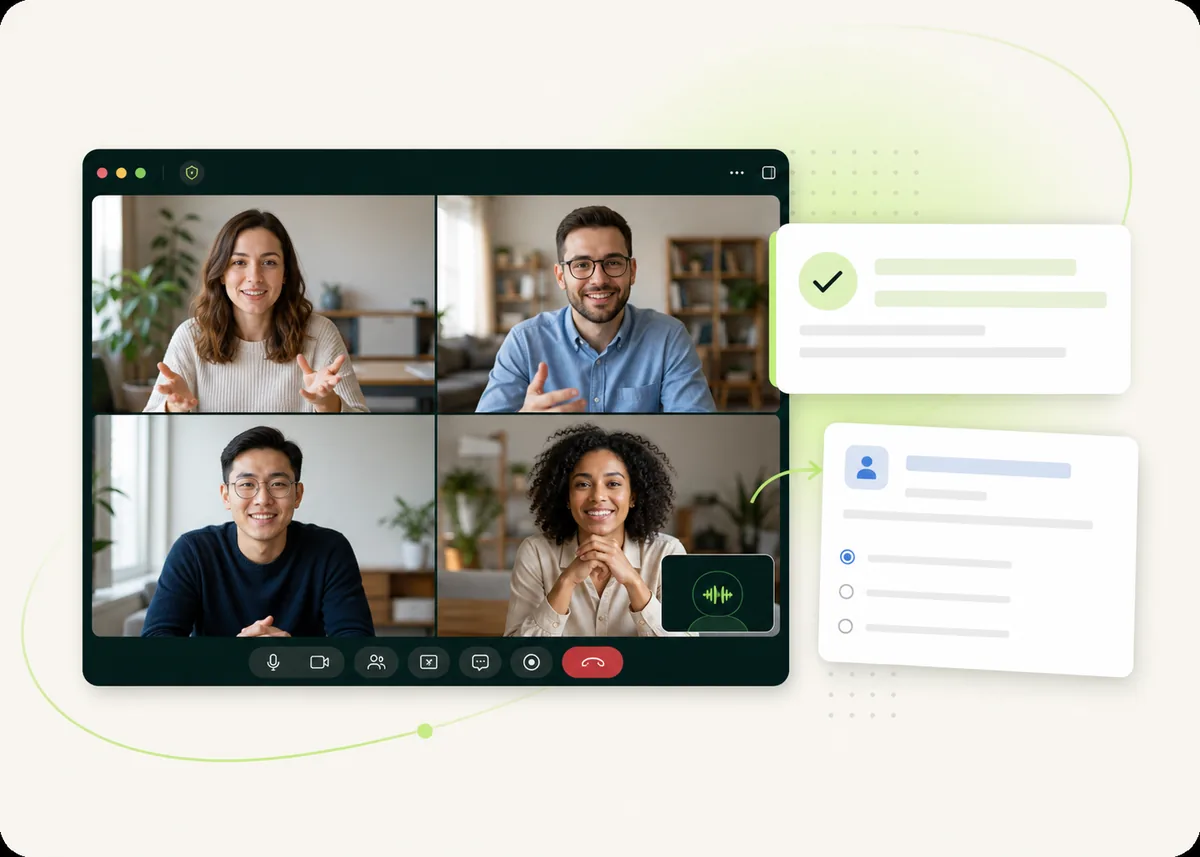
A class on Zoom, Google Meet or Teams
- BotSend Mesakem the link to the class, and the bot joins as a visible participant with a clear name. The lecturer sees it, and can let it in or remove it.
- Desktop appClick Start recording, and your computer records the class without adding a participant.
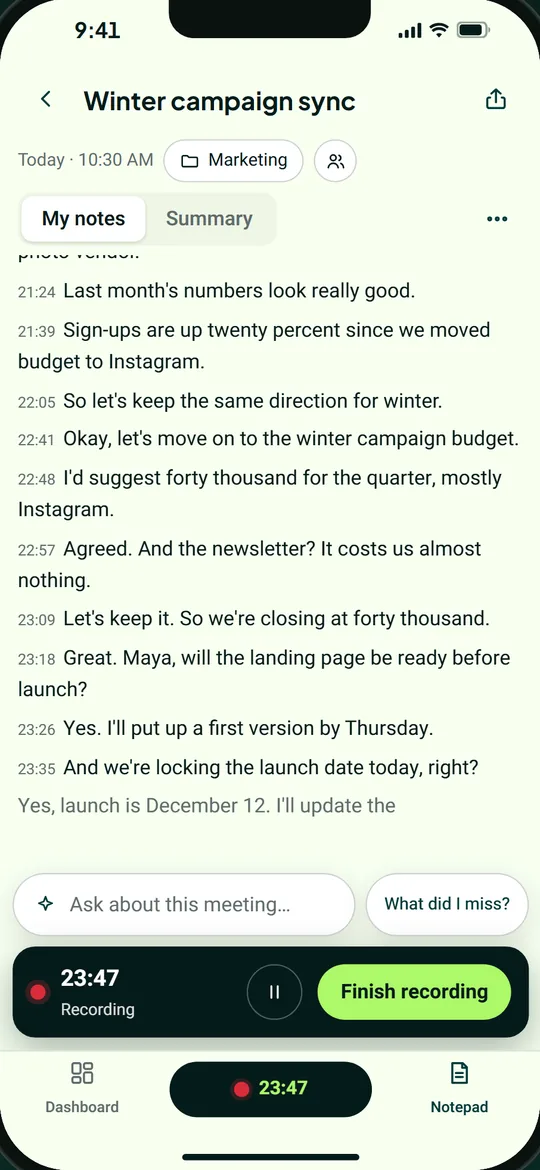
In a lecture hall or a classroom
- Phone appTap Record and put your phone on the desk. Recording keeps going with the screen locked.
- Desktop appLaptop open in class? It records through its own microphone.
In the hallway, or one-on-one with your lecturer
- Phone appA question after class, or office hours. Record with your lecturer's consent, and get a summary of what was explained.
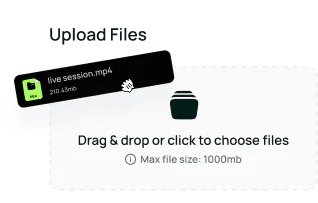
A recording you already have
- UploadDrag an audio or video file of a class into the dashboard, and get a transcript and a summary, like any meeting.
Each course in its own room
In the dashboard, you create a room for each course or subject and add its classes to it. The room shows all the course's summaries and tasks, and you can ask questions about all the material at once.
A room for each course
Click Create room and give it a name, like “Statistics” or “Intro to Economics”.
Add your classes
From the room, from the class page (Add to room), or from the folders in the phone app.
Ask the room
An AI chat about every class in the room. Answers are based only on the summaries and transcripts of the classes in the room, and each answer names the class it came from.
Analysis in one click
On the Trends tab, click Generate analysis, and get a picture of all the classes in the room: open topics and suggested next steps.
What you get after class
A transcript by speaker
Everything said in class, written down and split by speaker. Good for review before an exam, and for the parts you didn't manage to write down.
A clear summary
The main topics of the class. Want a different structure? Create your own summary template for classes in the dashboard.
Assignments and dates
What the lecturer asked you to prepare, and by when, goes on your task list when it was said in class.
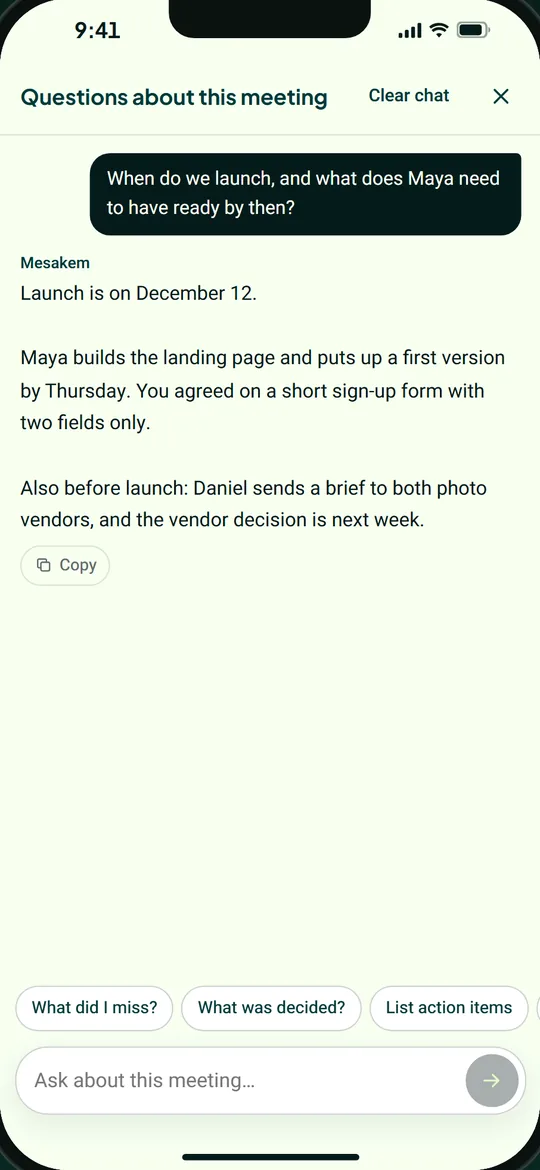
Questions about the class
An AI chat for each class: “What did she say about the quiz?”, “Explain the second topic again.” The answer is based on what was said in class.
On your phone and your computer
The phone app records in the classroom and the hallway, on iPhone and Android. The desktop app records classes from your laptop, on Windows and Mac. Both sign in to the same account.
Download for your computer (Windows and Mac)Everything about the phone app
Questions students ask
Can I record a lecture on Zoom?
Yes. Send Mesakem the link to the class and the bot joins as a visible participant, or record on your computer with the desktop app. Mesakem works with Zoom, Google Meet and Microsoft Teams.
How do I record an in-person lecture?
With the phone app, for iPhone and Android: tap Record and put your phone on the desk. Recording keeps going with the screen locked. You can also record from your laptop with the desktop app.
Is the transcript good in a big lecture hall?
A lecturer who speaks far from the microphone is picked up more faintly, and that affects the transcript. Sit close to the lecturer or a speaker, and put your phone on the desk.
How do I organize my classes by course?
With rooms: create a room for each course and add its classes to it. In the room, you can ask the chat about all the classes at once, and each answer names the class it came from.
Do I need my lecturer's permission to record?
Maybe. Recording a class may need your lecturer's permission, and your school may have its own rules. Ask your lecturer before class. The details are on the Recording and consent page.
How much does it cost?
Your first 10 meetings are free, up to 90 minutes each, no credit card. A class you record with the bot, the phone app or the desktop app counts as a meeting. To see what each plan includes, visit the pricing page.
What language is the summary in?
English or Hebrew. Transcription works in English, Hebrew and many other languages.